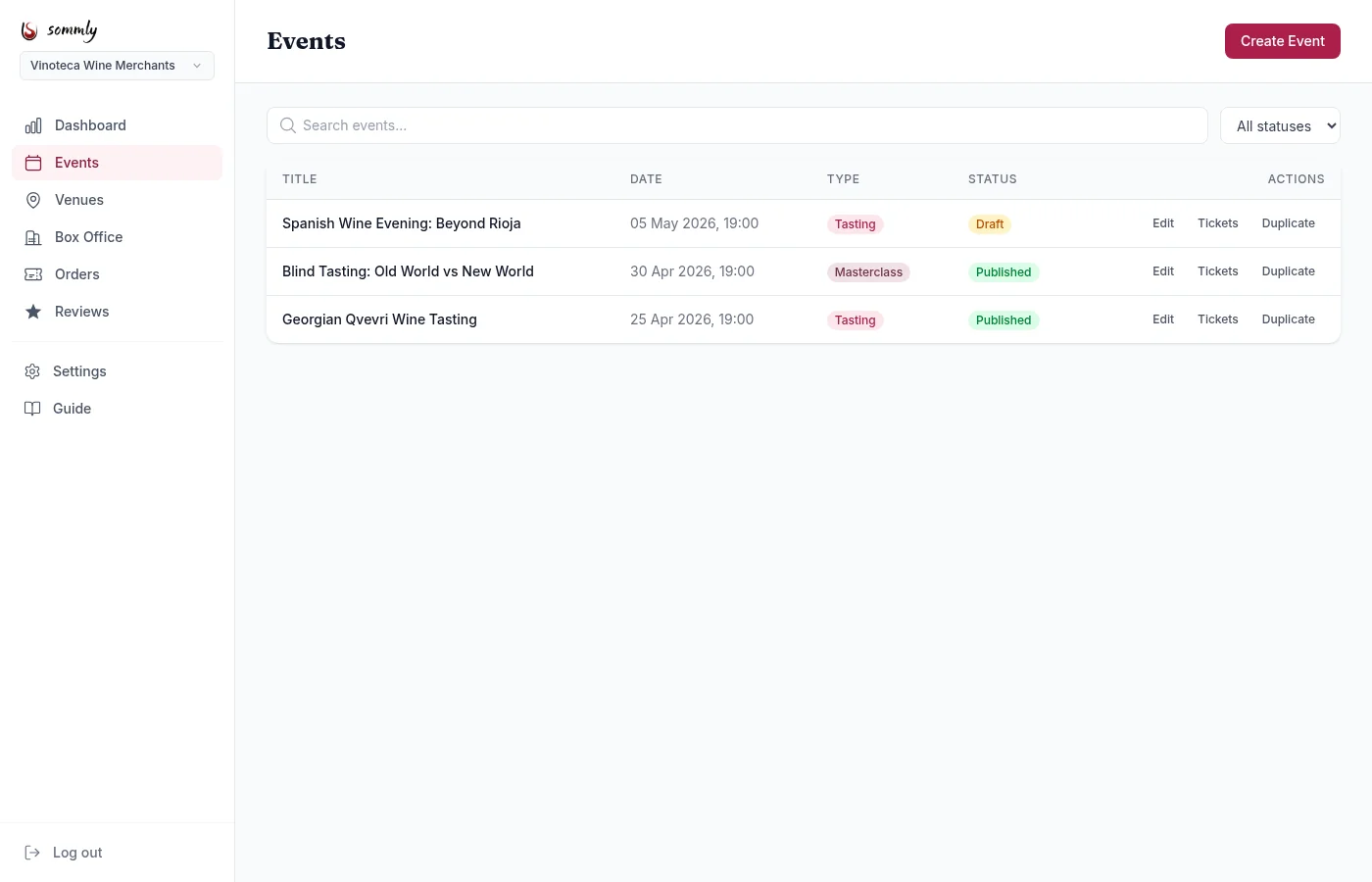
Events are the main thing Sommly lists. Everything in the event form is laid out in the order a visitor reads it: title, description, image, date, venue, tickets.
Creating an event
From the sidebar open Events and hit Create Event.
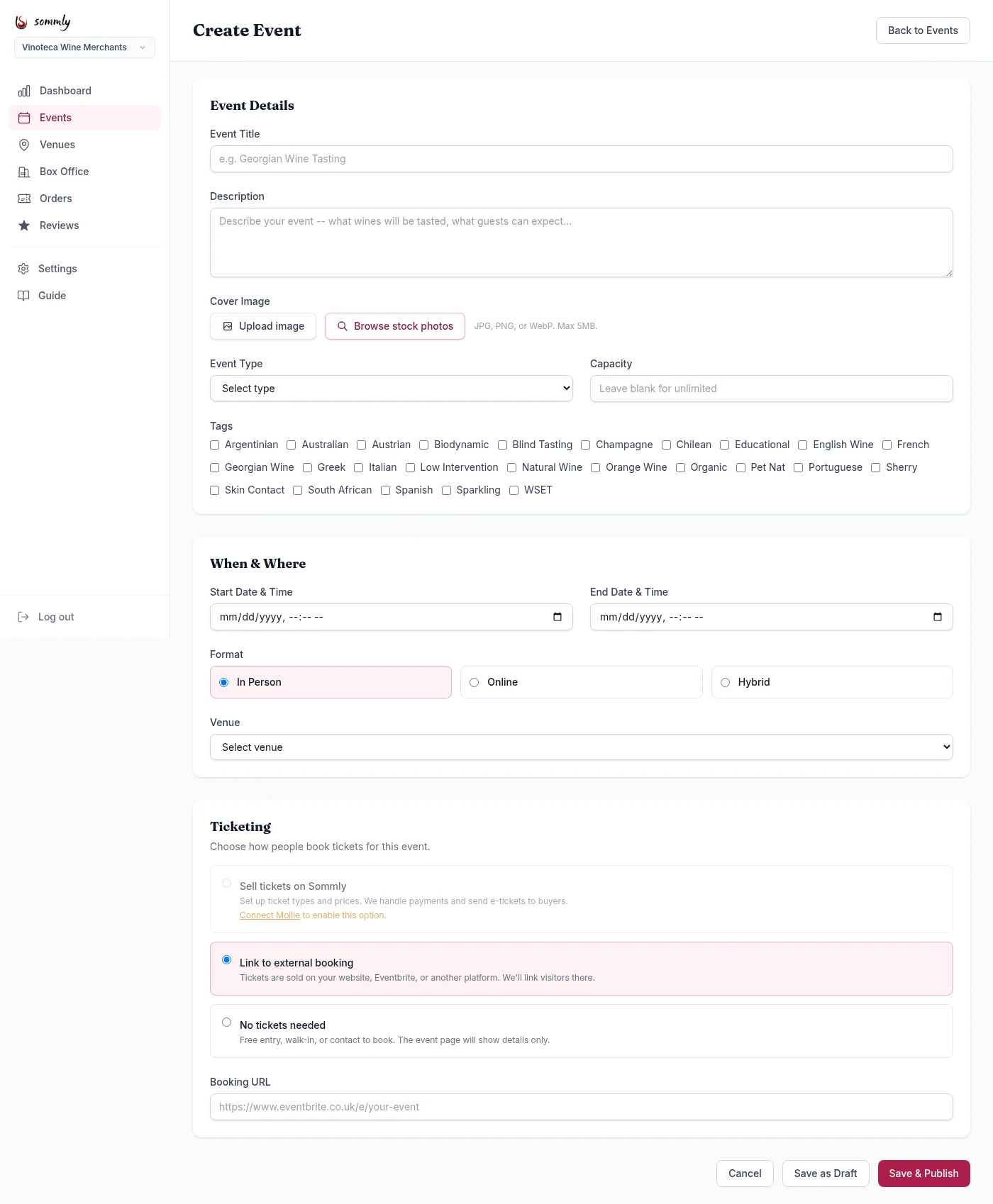
Event Details
- Event Title. Short and specific. "Georgian Qvevri Wine Tasting" beats "Wine Tasting Night".
- Description. What will be poured, what is included, what to expect. The first two sentences are what shows in list previews, so front-load the good stuff.
- Cover Image. Upload your own (JPG, PNG, or WebP, max 5MB) or browse stock photos. Landscape works best.
- Event Type. Tasting, Masterclass, Supper Club, Wine Dinner, Course, Wine Fair, or Other. This drives filters on the public site.
- Capacity. The total seat count across all ticket types. Leave blank for unlimited.
- Tags. Tick whichever apply: region, grape, style. Tags let people find the event when browsing by topic.
Scheduling
Two options, picked at the top of the When & Where section:
- Fixed date. A one-off at a set date and time. The usual case, and the only option that plays nicely with Sommly checkout.
- On-demand. Bookable on request, no fixed date. Useful for at-home tasting kits, private tastings, or any experience where the guest picks the date. You can add an optional lead time (for example "7 days notice") which is shown on the event page.
Note
When & Where
- Start and End date + time. Local time. End time is used for the "happens this weekend" style filters. Hidden for on-demand events.
- Lead time (days). On-demand only. How much notice you need before fulfilling a booking.
- Format. In Person, Online, or Hybrid. Online events hide the venue selector and appear under the Remote filter on the public events page.
- Venue. Pick from your saved venues. If you have not added one yet, head to Adding venues first.
Ticketing
Three choices for how tickets work on fixed-date events:
- Sell tickets on Sommly. The default once Mollie is connected. You set prices, we handle payments, buyers get ticket PDFs.
- Link to external booking. You are selling elsewhere (your own site, Eventbrite). Paste the URL and the event page will show a Book with organiser button instead of a ticket picker.
- No tickets needed. Free walk-ins, or "email to book". The event page shows your details only.
On-demand events are always external: you provide the booking URL and Sommly links visitors to it. Setting up ticket types (tiers, prices, capacities) is covered in the next topic. Heads up: tier setup is not self-serve yet.
Refund policy
Each event has its own refund policy, set under When & Where via the Refund deadline preset. Pick No refunds, or allow refunds up to 24, 48, 72, or 168 hours before start. A custom value is available too. Buyers requesting a refund inside the window are processed automatically; outside the window they are told to contact you.
Saving and publishing
- Save as Draft. The event is saved to your dashboard but not listed publicly. Useful for work-in-progress.
- Save & Publish. The event goes live at its public URL, appears in listings, and is indexed for search.
You can flip between Draft and Published at any time from the events list.
Duplicating an event
Running the same event again? On the events list, hit Duplicate next to the original. You get a draft copy with new dates to fill in, but everything else (description, tags, ticket types) is carried over.