Business settings are split across four tabs: Profile (what visitors see), Contact & Social (how they reach you), Payments (your Mollie connection), and Ingestion (whether Sommly can add events for you automatically).
Profile
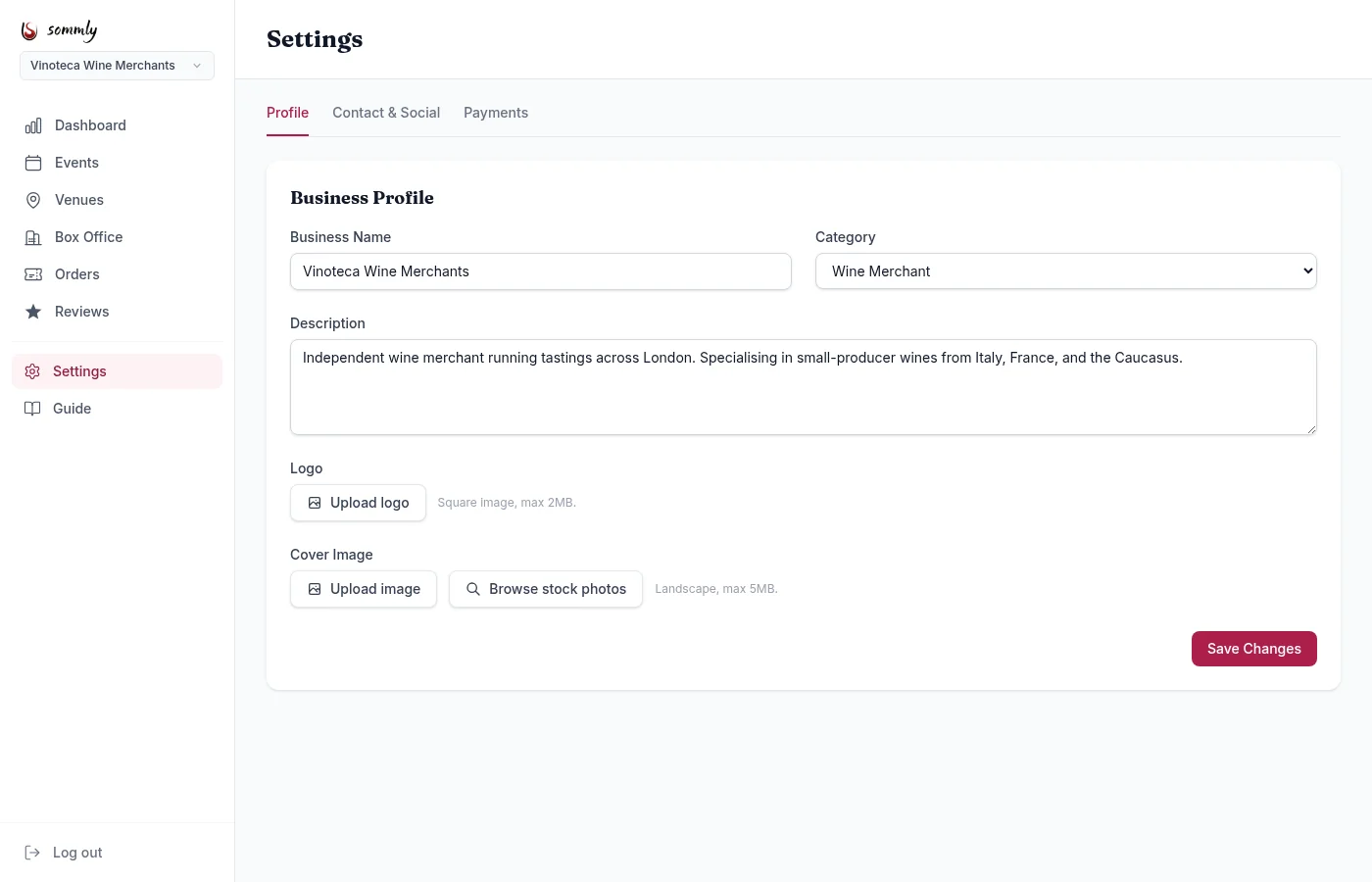
- Business Name. Shown on your page and on every event you host.
- Category. Wine Merchant, Wine Bar, Bottle Shop, Importer, Wine Educator, and others. Drives the "For Organisers" filter on the public site.
- Description. Two or three sentences about who you are and what you run. This is the first thing a visitor reads on your profile.
- Logo. Square image, max 2MB. Shown on event cards next to your name.
- Cover Image. Landscape image, max 5MB. Banner at the top of your business page.
Hit Save Changes. Changes appear on your public page straight away.
Contact & Social
Contact details for your business as a whole. Per-venue contact info lives on the venue itself.
- Email and Phone. Optional. Worth adding for anyone who wants to reach you outside ticketing.
- Website.
- Social links. Instagram, Facebook, X, TikTok. Show as icons on your business page.
Payments
The Payments tab has one job: manage your Mollie connection.
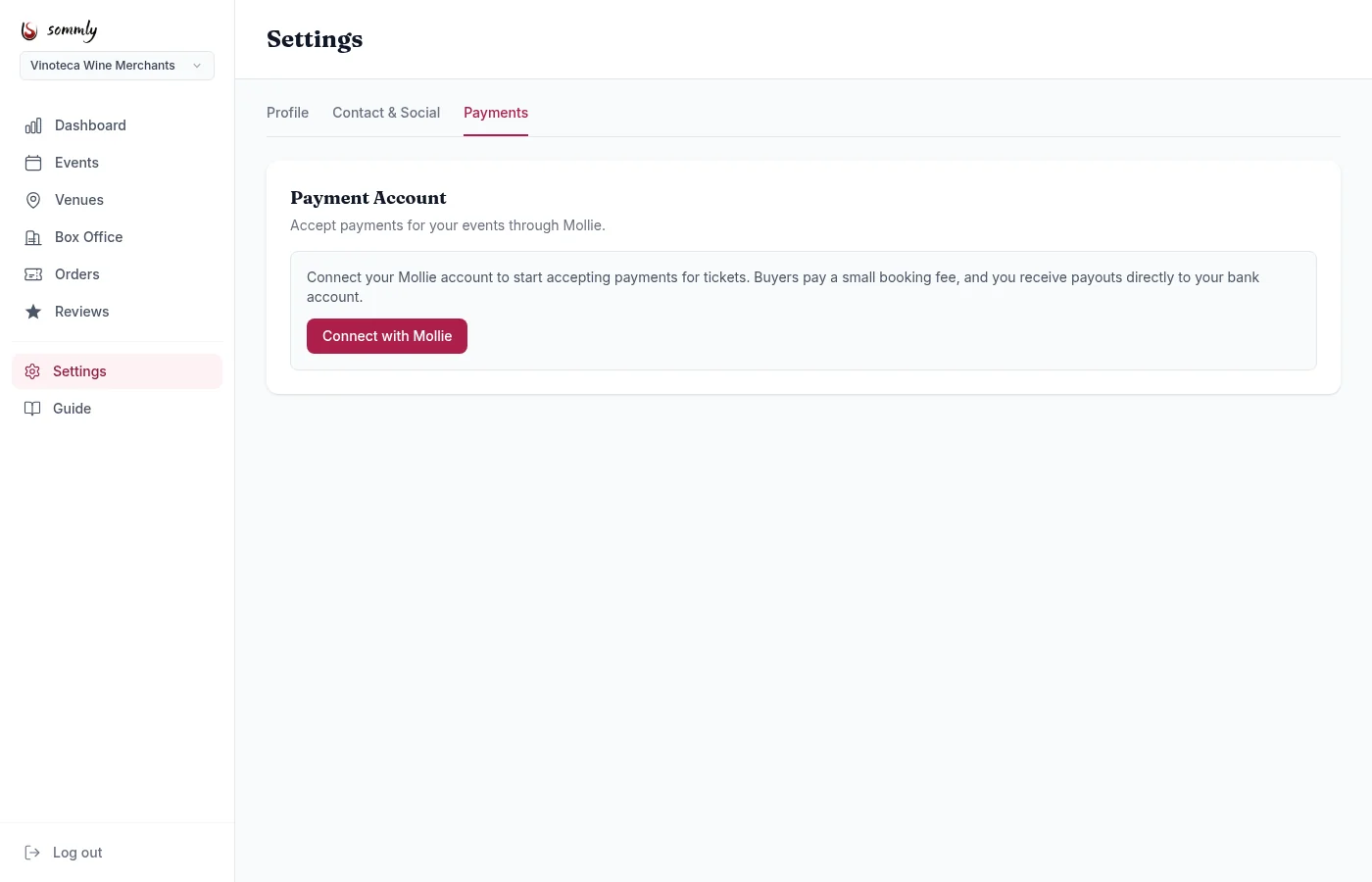
Full walkthrough in the Connecting Mollie topic.
Ingestion
Sommly regularly finds wine events online and lines them up for review. When one is clearly yours, our team publishes it on your Sommly page so attendees can discover you through our listings. No work on your side.
If you'd rather only publish events you add yourself, tick Stop adding events for me automatically. From that point on, any scraped events matched to your business get rejected on review instead of going live.
- Existing published events stay where they are. The toggle only affects new ingestions.
- You can still create events manually from the Events page at any time, whether the toggle is on or off.
- Flip it back off whenever you want us to start ingesting again.
This is different from being removed from Sommly entirely. If you'd like your business taken down altogether, email [email protected].
Managing multiple businesses
If you own more than one business, use the dropdown at the top of the sidebar to switch. Every settings page is scoped to the currently selected business, so updating one never changes another.
Need to add a team member? An admin can link other users to a business. Email [email protected] with the details. A self-serve team management page is on the roadmap.